Quick Tip: When deploying a solution file to your SharePoint farm, if within 5 seconds you encounter an Error for deployment status (In Central Administration, under Operations, Solution Management) with no additional details, ensure the Windows SharePoint Services Administration service is started on all SharePoint servers in the farm. Also, ensure the service is running as the Local System account on each server.
Hope this quick tip saves you hours of troubleshooting!
Showing posts with label Administering MOSS. Show all posts
Showing posts with label Administering MOSS. Show all posts
Wednesday, July 21, 2010


Thursday, April 2, 2009
Multiple Web Applications on Port 80
I have recently gotten a few questions (from SharePoint beginners) on how to run more than one SharePoint web application on port 80. Since there doesn’t seem to be a definitive set of instructions addressing this need, I thought I would “fill the void” in this blog post. In short, it’s all about using Host Headers! Now on to the detailed instructions...
Let’s assume you already have an existing web application (and associated site collections) using port 80. To add a new web application that also uses port 80, follow these three simple steps:
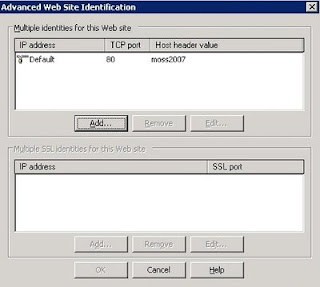
1. Ensure your existing web application has a host header. Open the Internet Information Services (IIS) Manager. Expand the Web Sites folder, right-click your existing web site, and select Properties. On the Web Site tab, select the Advanced button located in the Web site identification section. Highlight your web site entry and select to Edit. For the Host Header value, enter the name of your site URL without the http://. For example, if your site URL is http://portal, you would enter portal for the Host Header value. The screenshot below shows the Host Header value for a site URL named http://moss2007.
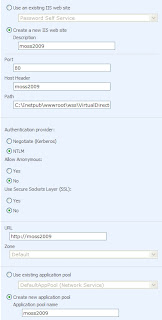
2. Create the new web application. In the Central Administration console, under Application Management, select Create or extend Web application, then Create a new Web application. Be sure to add the appropriate Host Header value, as shown in the screenshot below.
3. Ensure you have the appropriate Host (A) records in DNS for each of the Host Header values in your situation. Each Host (A) record must point to the IP address of the front-end web server or load balancer in your farm, as illustrated in the screenshot below.

All done!
Let’s assume you already have an existing web application (and associated site collections) using port 80. To add a new web application that also uses port 80, follow these three simple steps:
1. Ensure your existing web application has a host header. Open the Internet Information Services (IIS) Manager. Expand the Web Sites folder, right-click your existing web site, and select Properties. On the Web Site tab, select the Advanced button located in the Web site identification section. Highlight your web site entry and select to Edit. For the Host Header value, enter the name of your site URL without the http://. For example, if your site URL is http://portal, you would enter portal for the Host Header value. The screenshot below shows the Host Header value for a site URL named http://moss2007.

2. Create the new web application. In the Central Administration console, under Application Management, select Create or extend Web application, then Create a new Web application. Be sure to add the appropriate Host Header value, as shown in the screenshot below.

3. Ensure you have the appropriate Host (A) records in DNS for each of the Host Header values in your situation. Each Host (A) record must point to the IP address of the front-end web server or load balancer in your farm, as illustrated in the screenshot below.

All done!
Subscribe to:
Comments (Atom)