Yesterday evening, when installing Service Pack 2 to my test SharePoint farm, the configuration wizard failed on Step 3. After dissecting the Upgrade.log file located at C:\Program Files\Common Files\Microsoft Shared\Web Server Extensions\12\Logs\Upgrade.log, I found the following error:
[WebApplicationSequence] [ERROR] [5/10/2009 6:51:13 PM]: Feature '20477d83-8bdb-414e-964b-080637f7d99b' is not installed in this farm, and cannot be added to this scope.
After further research, I discovered the feature referred to in the error (20477d83-8bdb-414e-964b-080637f7d99b) is the “PublishingTimerJobs” feature. To install this feature to the farm, run the following stsadm command:
stsadm -o installfeature -name PublishingTimerJobs
Next, I recommend forcing the timer job to execute immediately.
stsadm.exe -o execadmsvcjobs
Finally, run the configuration wizard again to successfully complete the installation of SP2 to the SharePoint farm:
psconfig -cmd upgrade -wait -inplace b2b
Hope this helps.
Monday, May 11, 2009


Wednesday, April 22, 2009
Exporting and Importing Subsites
Ever had a need to backup or migrate the content (libraries, lists, etc.) of a subsite in SharePoint? The STSADM command-line tool makes it very easy. As you know, STSADM can be used to backup a site collection at the parent level by using the backup operation. However, there may be times in which you want to backup a subsite, either before patching your SharePoint farm or in efforts of migrating the subsite to another farm or web application. You can accomplish this task by using the export and import operations of STSADM. The following is an example of exporting the contents from a team subsite:
stsadm -o export -url http://portal/sites/hr/team -filename C:\SharePointBackups\hrteam.cmp -includeusersecurity
The includeusersecurity parameter preserves the user security settings.
To migrate this data to another farm or web application, you issue the import operation, as follows:
stsadm -o import -url http://portal2/sites/hr/team -filename
C:\SharePointBackups\hrteam.cmp -includeusersecurity
NOTE 1: When importing to a new SharePoint farm, the new farm must be at the same patch level as the old farm. Also, you may encounter an error stating that one or more features are not available in the new farm, but exist in old farm. In my case, I got the error "Could not find Feature S2SiteAdmin". To fix this issue, follow these three simple steps:
1. Copy the appropriate feature directory from the old farm to the new farm. The feature directories are located in C:\Program Files\Common Files\Microsoft Shared\Web Server Extensions\12\TEMPLATE\FEATURES. In my case, I copied the S2SiteAdmin directory from the old farm to the new farm.
2. Install the feature on the new farm by using the installfeature STSADM operation and the relative path to the Feature.xml file in your particular feature directory. In my case, I ran the following command:
stsadm -o installfeature -filename S2SiteAdmin\Feature.xml -name S2SiteAdmin
3. Activate the feature on the new farm by using the activatefeature STSADM operation. In my case, I ran the following command:
Stsadm -o activatefeature -name S2SiteAdmin -url http://portal2/sites/hr/team
NOTE 2: You must pre-create the subsite in the new environment before attempting to import to it. Also, the newly created subsite must use at least the same site template as the subsite to be imported, though I recommend using the Blank Site template to ensure the import runs without any issues.
The export and import STSADM operations are particularly useful if you administer project workspaces or subsites of a PWA (Project Web Access) site and need a good backup of their associated content before installing updates to the SharePoint farm. The PWA site is easy to recover by using the existing databases related to Project Server (Archive, Draft, Published, Reporting), but any project workspaces or subsites of the PWA site may require recovery using the import operation detailed in this blog post.
stsadm -o export -url http://portal/sites/hr/team -filename C:\SharePointBackups\hrteam.cmp -includeusersecurity
The includeusersecurity parameter preserves the user security settings.
To migrate this data to another farm or web application, you issue the import operation, as follows:
stsadm -o import -url http://portal2/sites/hr/team -filename
C:\SharePointBackups\hrteam.cmp -includeusersecurity
NOTE 1: When importing to a new SharePoint farm, the new farm must be at the same patch level as the old farm. Also, you may encounter an error stating that one or more features are not available in the new farm, but exist in old farm. In my case, I got the error "Could not find Feature S2SiteAdmin". To fix this issue, follow these three simple steps:
1. Copy the appropriate feature directory from the old farm to the new farm. The feature directories are located in C:\Program Files\Common Files\Microsoft Shared\Web Server Extensions\12\TEMPLATE\FEATURES. In my case, I copied the S2SiteAdmin directory from the old farm to the new farm.
2. Install the feature on the new farm by using the installfeature STSADM operation and the relative path to the Feature.xml file in your particular feature directory. In my case, I ran the following command:
stsadm -o installfeature -filename S2SiteAdmin\Feature.xml -name S2SiteAdmin
3. Activate the feature on the new farm by using the activatefeature STSADM operation. In my case, I ran the following command:
Stsadm -o activatefeature -name S2SiteAdmin -url http://portal2/sites/hr/team
NOTE 2: You must pre-create the subsite in the new environment before attempting to import to it. Also, the newly created subsite must use at least the same site template as the subsite to be imported, though I recommend using the Blank Site template to ensure the import runs without any issues.
The export and import STSADM operations are particularly useful if you administer project workspaces or subsites of a PWA (Project Web Access) site and need a good backup of their associated content before installing updates to the SharePoint farm. The PWA site is easy to recover by using the existing databases related to Project Server (Archive, Draft, Published, Reporting), but any project workspaces or subsites of the PWA site may require recovery using the import operation detailed in this blog post.
Thursday, April 2, 2009
Multiple Web Applications on Port 80
I have recently gotten a few questions (from SharePoint beginners) on how to run more than one SharePoint web application on port 80. Since there doesn’t seem to be a definitive set of instructions addressing this need, I thought I would “fill the void” in this blog post. In short, it’s all about using Host Headers! Now on to the detailed instructions...
Let’s assume you already have an existing web application (and associated site collections) using port 80. To add a new web application that also uses port 80, follow these three simple steps:
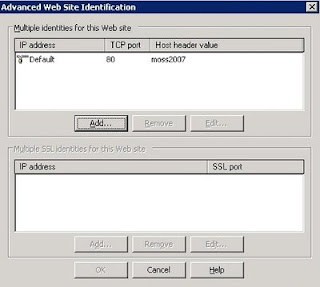
1. Ensure your existing web application has a host header. Open the Internet Information Services (IIS) Manager. Expand the Web Sites folder, right-click your existing web site, and select Properties. On the Web Site tab, select the Advanced button located in the Web site identification section. Highlight your web site entry and select to Edit. For the Host Header value, enter the name of your site URL without the http://. For example, if your site URL is http://portal, you would enter portal for the Host Header value. The screenshot below shows the Host Header value for a site URL named http://moss2007.
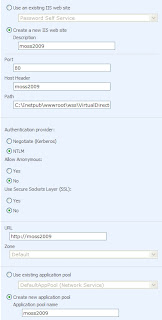
2. Create the new web application. In the Central Administration console, under Application Management, select Create or extend Web application, then Create a new Web application. Be sure to add the appropriate Host Header value, as shown in the screenshot below.
3. Ensure you have the appropriate Host (A) records in DNS for each of the Host Header values in your situation. Each Host (A) record must point to the IP address of the front-end web server or load balancer in your farm, as illustrated in the screenshot below.

All done!
Let’s assume you already have an existing web application (and associated site collections) using port 80. To add a new web application that also uses port 80, follow these three simple steps:
1. Ensure your existing web application has a host header. Open the Internet Information Services (IIS) Manager. Expand the Web Sites folder, right-click your existing web site, and select Properties. On the Web Site tab, select the Advanced button located in the Web site identification section. Highlight your web site entry and select to Edit. For the Host Header value, enter the name of your site URL without the http://. For example, if your site URL is http://portal, you would enter portal for the Host Header value. The screenshot below shows the Host Header value for a site URL named http://moss2007.

2. Create the new web application. In the Central Administration console, under Application Management, select Create or extend Web application, then Create a new Web application. Be sure to add the appropriate Host Header value, as shown in the screenshot below.

3. Ensure you have the appropriate Host (A) records in DNS for each of the Host Header values in your situation. Each Host (A) record must point to the IP address of the front-end web server or load balancer in your farm, as illustrated in the screenshot below.

All done!
Monday, March 23, 2009
Hide default system libraries on Publishing Site
When you create a publishing site, the publishing feature in SharePoint automatically creates three document (system) libraries: Documents, Images, and Pages.
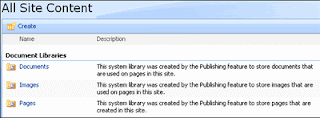
The Documents system library is used to store documents that are attached to or related to publishing pages. The Images system library is used to store graphics and photos that are attached or related to publishing pages. The Pages system library is where pages that were created in the browser are stored.
To eliminate confusion with any user-created document libaries, you can hide these system libraries by following these simple steps:
1. Open your publishing site in Office SharePoint Designer 2007.
2. Right-click on each system library you want to hide and select Properties.
3. On the Settings tab, select to Hide from browsers.
4. Select OK.
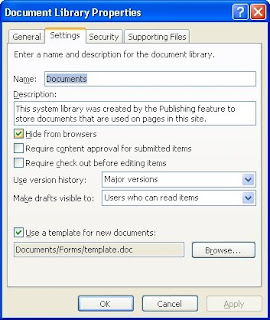
Each system library is now hidden from browser view.

The Documents system library is used to store documents that are attached to or related to publishing pages. The Images system library is used to store graphics and photos that are attached or related to publishing pages. The Pages system library is where pages that were created in the browser are stored.
To eliminate confusion with any user-created document libaries, you can hide these system libraries by following these simple steps:
1. Open your publishing site in Office SharePoint Designer 2007.
2. Right-click on each system library you want to hide and select Properties.
3. On the Settings tab, select to Hide from browsers.
4. Select OK.

Each system library is now hidden from browser view.
Tuesday, March 10, 2009
Advanced Search Web Part for SharePoint Lists
Recently, the Business Analysis manager at my current workplace requested the ability to search custom columns on individual lists (Project Tasks lists in particular) on a SharePoint site. Initially, I thought I could use the Advanced Search Box web part available out-of-the-box in SharePoint. I am already familiar with the document content search capabilities using metadata properties and the Advanced Search Box web part, but this approach is primarily used in searching for specific documents and files at the site collection level or within search scopes. Moreover, I discovered other complexities associated with the requested lists. For instance, some of the default list columns had been renamed instead of creating custom columns for unique information. Further research and Google searches returned nothing tangible, so I realized a custom web part was needed.
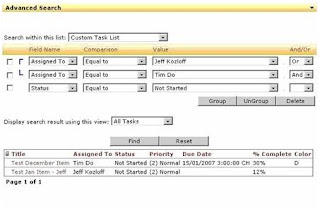
I don’t claim to be a true “SharePoint Developer”, but I can roll up the sleeves and dish out some .NET code when absolutely necessary. More importantly, I know WHEN the development of a custom web part is needed, and in my experiences it is pretty rare. For those that know EVERYTHING available in SharePoint out-of-the-box, you know what I am talking about. So, before taking the development route, I decided to take a quick look at Bamboo Solutions. Sure enough, they have exactly what I needed in their List Search Advanced Web Part. For a mere $300, you can deploy this cool web part and make it available throughout your entire SharePoint farm. Now that’s what I call efficiency!
With the List Search Advanced Web Part, you can:
- Limit searches to a single list without the need to create an index and search scope.
- Display search results by individual list item.
- Customize views to define the display of the search results list, including columns, sorts, and groups.
- Include AND / OR operators in the search criteria, and the ability to group the criteria.
- Allow printing of the search results.
- Require users to type in text when a Lookup field is selected instead of hindering web part performance by selecting from a drop-down list that has too much data.

Ok, so that’s two consecutive blog posts regarding Bamboo products. Before you ask, the answer is no -- I do not work for Bamboo Solutions nor do I receive any royalty from them. I simply believe in taking advantage of opportunities to be more efficient, particularly in regards to custom development. Of course, the quality must be there too, and Bamboo offers some of the best products on the market.
I promise my next blog post will not be about a product from Bamboo Solutions…

Thursday, February 26, 2009
Bamboo SharePoint Analyzer
Bamboo Solutions, the leading provider of SharePoint Web Parts and technologies that extend the functionality of the SharePoint platform, has established a Bamboo Labs site where they give you the opportunity to try new products and technologies in development at Bamboo before they're available for purchase. One of their latest beta products, called SharePoint Analyzer, is a tool that administrators can use to quickly discover the configuration details of any SharePoint deployment. Specifically, SharePoint Analyzer will return the following information:
- The entire farm topology, from Web applications all the way down to individual lists.
- Server information, including patches and updates.
- Information on databases that are being used as part of your SharePoint deployment.
- Solutions and Features that have been deployed, displayed per Web Application, Site Collection, or Site scope.
- Services and their status.
- Information about Bamboo products that are used in your farm.
I have installed and evaluated SharePoint Analyzer, and it is indeed a great tool. Not surprised though, Bamboo has been introducing great SharePoint products for over five years now, and I suspect it will only get better. As in their words, “If you have SharePoint, you need Bamboo!”
Monday, February 23, 2009
The Ideal Manager
In this post, I thought I would discuss some of the characteristics of what I believe make up an ideal manager. In other words, how I like to be managed. I realize this blog post might be off-topic, but I believe we all should take advantage of opportunities to convey thoughts that could potentially make a positive difference in people’s lives, both personally and professionally.
As a former manager who has spent the better part of last five years overseeing the entire operations of an IT department for a company consisting of over 700 employees, I have spent an equal amount of time studying and applying the philosophies of many respected leaders throughout the industry. Much of my learning can be credited to Ramon Padilla, a well-known author on the popular TechRepublic website. Ramon’s experience includes 16+ years in IT management, with 10+ of those years being in senior IT management. His articles target managers on all levels, so I highly recommend Ramon’s advice whether you are a newly appointed front-line manager or a seasoned veteran in a CIO or CTO position.
So, without further ado, and in no particular order, my ideal manager is someone who:
As a former manager who has spent the better part of last five years overseeing the entire operations of an IT department for a company consisting of over 700 employees, I have spent an equal amount of time studying and applying the philosophies of many respected leaders throughout the industry. Much of my learning can be credited to Ramon Padilla, a well-known author on the popular TechRepublic website. Ramon’s experience includes 16+ years in IT management, with 10+ of those years being in senior IT management. His articles target managers on all levels, so I highly recommend Ramon’s advice whether you are a newly appointed front-line manager or a seasoned veteran in a CIO or CTO position.
So, without further ado, and in no particular order, my ideal manager is someone who:
- Believes in developing their people. I believe that lifelong learning and continuous improvement through training and education is what prevents a department from going stagnant or mediocre. The IT field is constantly changing, and many IT professionals actually enjoy learning about new and improving technologies. The ideal manager knows how to budget for training and development, and encourages staff to attend industry events whenever possible.
- Gets to know and understand their people’s work style, and aligns people according to their strengths. Every person is different, from their skill set to the way they prefer to work on activities. The “across the board” management approach simply does not cut it today’s workforce. The ideal manager gets to know the strengths and weaknesses of each person on the team, and works to leverage and build upon those strengths while minimizing efforts to improve each person’s weaknesses. In most cases, a person’s weaknesses are chosen by them, either because they are not interested in learning a particular skill or technology, or they simply do not believe it benefits their long-term career goals.
- Knows how to delegate appropriately. I believe one of the common mistakes managers make is trying to perform most of the technical duties of a department by themselves. Staff members need to know that they can be trusted with certain tasks, and managers should recognize that delegation is important to the overall health of the department. The ideal manager knows how and what to delegate as well as how to demonstrate the patience needed to see each delegated task through its completion.
- Focuses on overall productivity, not the time clock. The ideal manager sets clear goals and objectives that generally take staff 40 hours per week (or longer) to accomplish, then lets the staff manage their own time. As long as each employee is in attendance for important meetings and is available during the team’s general working hours, he or she should be empowered to work at whatever pace they believe they can be more productive. Again, employees need to know they are trusted and held accountable for their assignments.
- Knows the business and how each person on the team affects it. The ideal manager understands the business segments he or she supports and ensures that each team member also understands how their work affects the overall goals of those business segments. Furthermore, the ideal manager believes every project is essentially a business project with an IT component.
- Understands communication is a two-way responsibility. Communication should flow freely and easily between managers and staff. Every member of the team should be given the opportunity to discuss their ideas, and managers should spend as much time listening and asking questions as they do giving overall direction.
- Encourages teamwork. There is no individual more important than the team. The ideal manager establishes a collaborative and team-oriented environment that leads to a diverse, cross-functional staff. Generally, one team member knows the answer to something that another team member has wasted valuable hours trying to resolve. Teamwork also inherently improves communication within the department.
- Provides continual feedback while being direct and to the point. The ideal manager ensures that each team member knows what they are doing well and what they are doing not so well. Through methods that include casual conversations, formal performance reviews, and employee recognition events, managers should be clear and direct when assigning tasks and providing feedback for a finished assignment or project.
- Believes work should be fun. Should work be considered fun? Absolutely. Employees spend far too much time at the workplace not to find a way to enjoy it. Besides, who wants to work for a leader that is down all the time? The ideal manager has a passion for what he or she does, and uses that passion to permeate their entire department with inspiration. I personally approach each and every day on the job as an opportunity to make a difference in the organization. By solving business problems and improving business processes using SharePoint technologies, I live out my passion. If I’m living out my passion, I’m having fun.
- Knows how to hire well. As the old saying goes, “One bad apple can spoil the bunch”. The ideal manager understands that both technical and organizational skills should be evaluated when hiring a new member to the team. Some managers take it a step further and get the team involved in the hiring process.
- Believes in some form of the seven Ps, in regards to planning. Not really, but he or she should take planning seriously. For me, it’s “Proper Prior Planning Prevents Piss-Poor Performance”.
- Believes responsible, professional people can be as productive working from home as they are in the office. The idea of staff working from home continues to rub some managers the wrong way, and the topic of telecommuting is very touchy in some organizations. I personally believe it’s primarily due to the lack of structure, policies, and just plain old fashion management styles in some organizations. My experiences with telecommuting have all been very positive. In fact, I actually seen an increase in overall productivity after establishing a “work at home” initiative at my former workplace.
- Cherishes honesty. This is a biggie for me. In my opinion, the quickest way to lose respect of staff is to lie to them. Honesty enhances trust, and if employees know you tell the truth, they will trust your words and actions more. Obviously, there are going to be some things that are deemed confidential that only managers are allowed to know, but there are other ways of communicating such things to the team without flat-out lying to them.
- Establishes a level of expectation. In other words, no surprises. One of the first things I like to do when taking a new job is sit down with my new manager and discuss our expectations for each other. Common questions I ask the manager include “What can I expect for good performance?”, “What about bad performance?”, and “What is your management style?” Furthermore, whenever possible, managers should always keep staff in the loop of any upcoming change and provide the reasoning for it. They will appreciate you keeping them informed.
Thursday, February 12, 2009
"Access is denied. Check that the Default Content Access Account has access to this content, or add a crawl rule to crawl this content"
Recently, in my testing environment, I encountered the following error in the crawl log: "Access is denied. Check that the Default Content Access Account has access to this content, or add a crawl rule to crawl this content". After verifying the search content service account had all the necessary permissions to access the data for indexing, I was stumped. Then I found the following article issued by Microsoft:
http://support.microsoft.com/default.aspx/kb/896861
According to the article, Windows Server 2003 SP1 includes a loopback check security feature that is designed to help prevent reflection attacks on your server. Therefore, authentication fails if the FQDN or custom host header that you use does not match the local server name.
Since my testing environment is running Windows Server 2003 SP2 and uses different host headers for different web applications in IIS 6.0, I experienced this symptom. I applied the Method 1 workaround offered in the article and was then successful in crawling content.
Note: You only receive this error message if you try to browse the Web site directly on the server. If you browse the Web site from a client computer, the Web site works as expected.
http://support.microsoft.com/default.aspx/kb/896861
According to the article, Windows Server 2003 SP1 includes a loopback check security feature that is designed to help prevent reflection attacks on your server. Therefore, authentication fails if the FQDN or custom host header that you use does not match the local server name.
Since my testing environment is running Windows Server 2003 SP2 and uses different host headers for different web applications in IIS 6.0, I experienced this symptom. I applied the Method 1 workaround offered in the article and was then successful in crawling content.
Note: You only receive this error message if you try to browse the Web site directly on the server. If you browse the Web site from a client computer, the Web site works as expected.
Subscribe to:
Posts (Atom)